Your Money
Gross vs. Net Salary in Mexico: 2026 Calculation Example
What comes out of a gross salary in Mexico (ISR and IMSS) and a 2026 step-by-step example: from MXN 20,000 gross to what you take home.
Santiago SanchezNovember 27, 2026

Roku Pay is Roku’s built-in payment system for buying channels, renting movies, and paying subscriptions from your device. It works by adding a payment method to your account, and you can improve security with a 4-digit PIN.
When it comes to streaming platforms, convenience and security are always crucial factors. That’s where Roku Pay comes in—a comprehensive solution for Mexicans to manage their online transactions all in one place.
With Roku Pay, it’s easier to pay for subscriptions, movies, and TV shows quickly and securely. This way, you can enjoy all the content offered by different streaming platforms.
Want to know more about this service?
Keep reading to learn everything about Roku Pay, from how it works to how to set up a security PIN. We’ll even give you practical tips and an attractive alternative for your payments.
Get ready to simplify your payments and enjoy digital entertainment without worries!
It is a payment system that belongs to the Roku company and is integrated into its streaming platform. This allows you to buy and subscribe directly from your Roku devices.
With Roku Pay, you can pay for:
Streaming channels.
Premium content.
Movie and TV show rentals or purchases.
Sports events.
Subscriptions to additional services.
As well as other digital products provided by Roku.
The system is designed to be simple and secure. If you’ve used services like Apple Pay, you can imagine how fast Roku Pay is as a payment provider.
Today, you can even pay in Mexican pesos using Roku Pay.
When you create your Roku account, you add a payment method, and Roku Pay uses it to charge your purchases and subscriptions. In Mexico, Roku accepts credit, debit and prepaid cards and PayPal.
You can also set up a 4-digit PIN if desired.
Once that’s done, you can use Roku Pay to start free trials, make purchases, or choose a subscription product. The payment method on your Roku account will only be charged once you make a purchase or subscription.
Before completing the process, Roku Pay will ask you to confirm the transaction. If you’ve enabled the PIN, you’ll need to enter it to authenticate the operation.
Roku Pay allows you to pay for other services, similar to options like Oxxo Pay in Mexico.
In this case, you can use Roku Pay to subscribe to services like HBO MAX, DAZN, Prime Video, or any other streaming services you want.
Here are the steps:
1. Go to Roku’s Channel Store
Access the Channel Store or Streaming Channels on your Roku device.
Search for the streaming service you want, like Hulu, Disney+, HBO MAX, DIRECTV GO, etc.
2. Select the Streaming Service
Find and select the channel you want to add.
A screen will open with details, including subscription options.
3. Start the Subscription
Select one of the subscription options.
You’ll see the option to pay with Roku Pay. If you already have a payment provider set up, it will be used to process the payment.
4. Confirm and Access
If you’ve set up a Roku Pay PIN, enter it when prompted to confirm the purchase.
Once validated, the subscription will be activated, and the payment will be processed through Roku Pay.
Access the streaming service from your Roku device.
The corresponding charge will appear in your Roku account’s purchase history.
Using a PIN will help reinforce your security and prevent unauthorized purchases from your Roku account.
To set up your Roku Pay PIN, follow these steps:
1. Access Your Roku Account
Go to http://my.roku.com from your computer or smartphone.
Sign in to your account. If you’ve forgotten your email or password, follow the instructions to recover them.
2. Set Up PIN Preferences
Once signed in, go to My account > Profile & settings and select "PIN/Parental controls."
3. Set a PIN for Purchases
In the "Making purchases and adding content" section, choose when you’d like to be prompted for a PIN:
Always ask for a PIN when making purchases and adding content from the Channel Store.
Always ask for a PIN for purchases.
4. Create or Change Your PIN
If you already have a PIN, click "Change current PIN." If not, select "Create PIN."
Enter the code you’d like to use.
Once set, simply click "Save changes" to complete the process.
Be sure to store it in a safe place, as you’ll need it for the actions you’ve selected.
A subscription purchased through Roku Pay can be canceled in several ways, though the process is similar in each case.
Here’s how to cancel a subscription with Roku Pay:
1. From Your Roku Streaming Player (with remote)
Navigate to the channel you want to cancel.
Click the “options” button on your remote.
In the menu, select "Manage subscription."
Then choose "Cancel subscription."
2. From the Streaming Channels/Channel Store Section
Open the "Streaming Channels/Channel Store" section on your Roku device.
Find and select the channel you want to cancel.
Click "Manage subscription."
Press "Cancel subscription."
3. From the Web Browser
Go to your Roku account.
Select "Manage your subscriptions."
Choose the subscription channel you want to cancel.
Click "Cancel subscription."
In any case, it’s a simple and quick process. Just choose the method that’s most convenient for you.
You can view active and expired subscriptions in your Roku account under “Manage subscriptions.”
Roku Pay is a service that lets you enjoy premium content securely and without hassle.
Here are some tips to use it most effectively:
Set a PIN for added security. This is especially helpful if you share your Roku device with others or have children at home.
Check and manage all your active subscriptions through your Roku account under "My subscriptions." This way, you can keep your streaming services organized and avoid unexpected charges.
Take advantage of free trials and offers Roku provides through the Channel Store.
Disable auto-renewal if you’re unsure about committing to a service long-term. Do this before the current subscription period ends.
Roku gives you access to thousands of channels, both free and paid. Plus, you can easily manage and cancel any of your subscriptions with just one click.
As mentioned, Roku allows you to add credit or debit cards, which means you can also link ARQCard from ARQ.
Why should you do this?
The answer is simple—it offers additional benefits, including:
With ARQCard, you can set a specific spending limit, so you don’t risk overspending.
You can pay in MXN as well as USD, which is ideal for any purchase or subscription within and outside of Roku.
If you go out with friends and want to split the bill, ARQCard makes it easy to do so from the app by creating groups.
You can generate multiple cards for different spending categories.
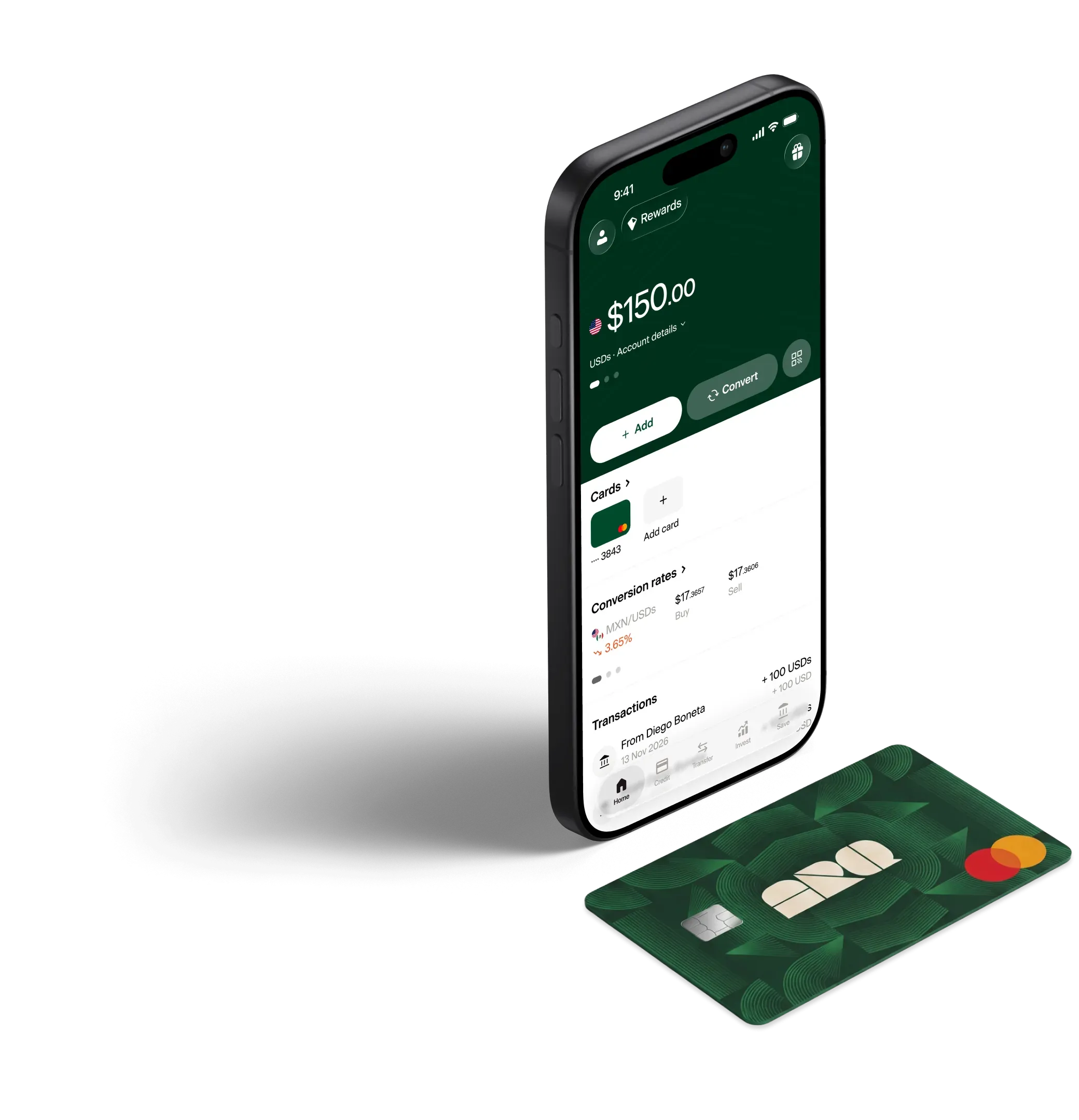
ARQ gives you a USD balance and the ARQCard, a secured credit card backed by that balance, accepted wherever Mastercard is accepted.
All of this can be done with just a few clicks after downloading ARQ.
Get digital dollars and digital euros in seconds, at real market rates. Without hidden fees.
What comes out of a gross salary in Mexico (ISR and IMSS) and a 2026 step-by-step example: from MXN 20,000 gross to what you take home.
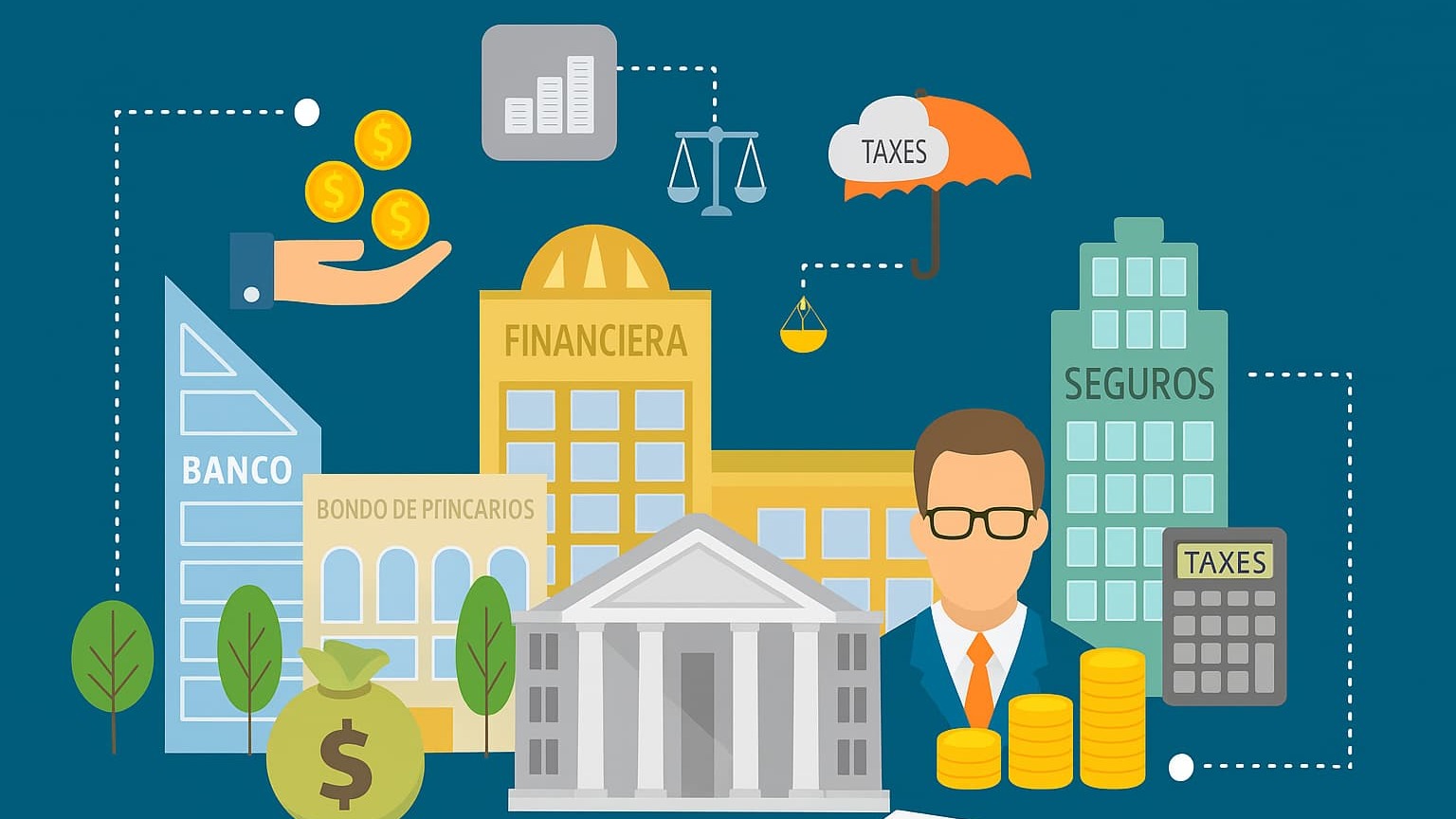
What financial institutions are, their types in Mexico, who supervises them and how to check that one is authorized before you hand over your money.
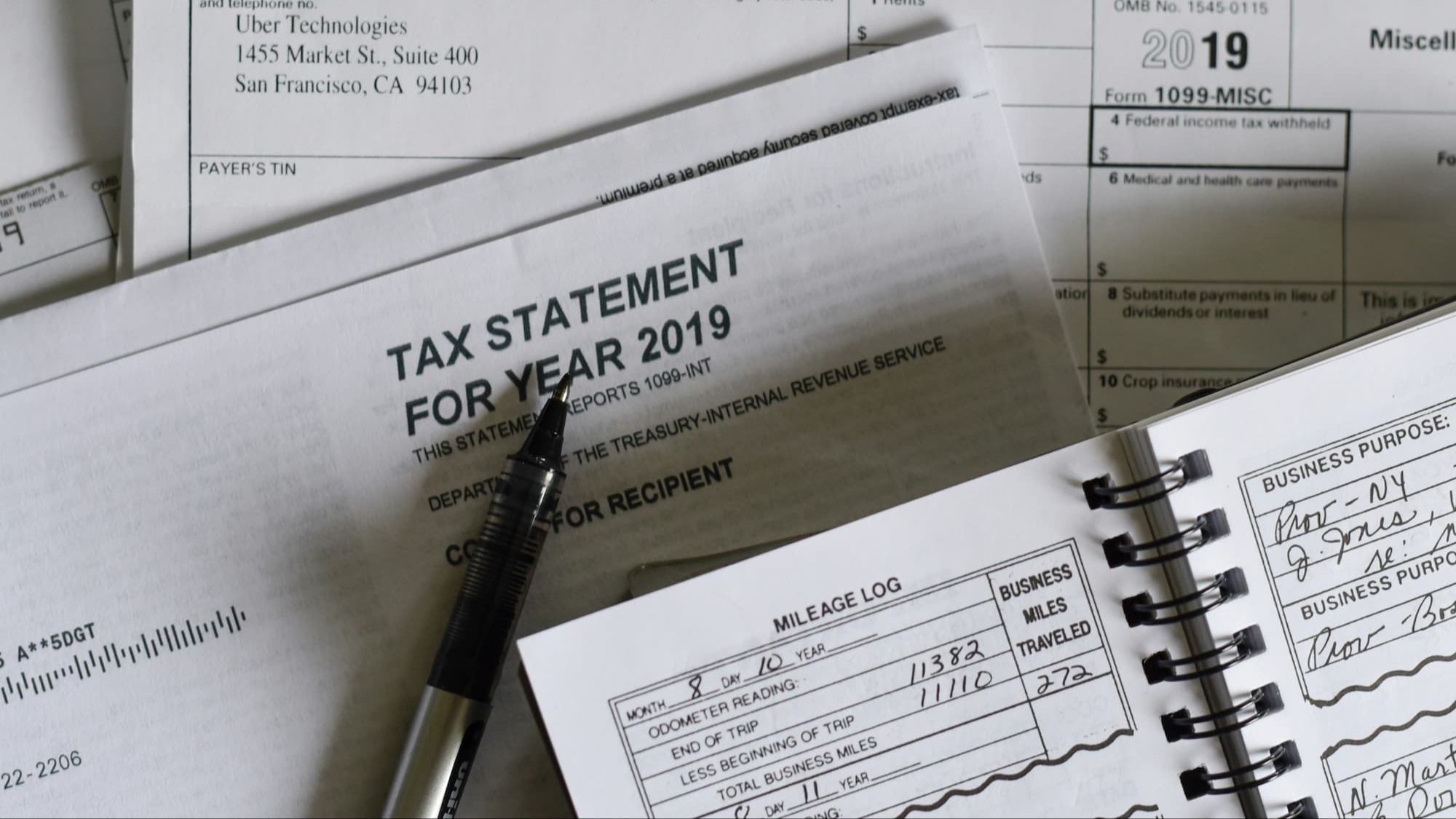
Remittances from parents, children or a spouse pay no ISR. From others, only above about MXN 128,454 a year. Examples and what to report.
Scan the code and join ARQ.
2 million people around the world already manage their finances with ARQ.